ATM Software Downloads
IMPORTANT: Please select the correct software file for your ATM. If you are unsure, please call us at 516-352-2707 or email service@bpsands.com. Please have your exact make and model ready.
Updates- Can be uploaded via a USB Stick.
SD Card Updates (Reformats) – You need to have a 2GB or less SD card OR Partition a larger SD Card so it is less than 2GB.
Hyosung ATMs:
-
Update: Updates the existing software without erasing your ATM’s programming or settings.
-
SD Card Upload: Completely erases the existing software and settings. Your ATM will need to be fully reprogrammed.
Genmega ATMs:
-
Update Folder: Contains only the software update. Your existing programming and settings will remain intact.
-
Full Load Folder: Completely erases the existing software and settings. Your ATM will need to be fully reprogrammed.
Please make sure you select the UPDATE option unless you specifically intend to erase and reprogram your ATM. Once you update or do a full load, always remember to remove your SD Card immediately afterwards.
Hyosung
1500SE
Update (USB)
2700, 5000SE, 4000W, Halo, Halo 2
Update (USB)
V06.04.01 – Win CE 6.0 Application Update (2700, 5000SE, 4000W, HALO, HALO II)
V06.04.01 – Win CE 7.0 Application Update (2700, 5000SE, 4000W, HALO, HALO II)
Full Load (SD Card)
V06.04.01 Win CE 6.0 Complete OS/BL/AP SD Card Load (2700, 5000SE, 4000W, HALO, HALO II)
V06.04.01 Win CE 7.0 Complete OS/BL/AP SD Card Load (2700, 5000SE, 4000W, HALO, HALO II)
Genmega
Hantle
Genmega/ Hantle Root Certificates
Instructions:
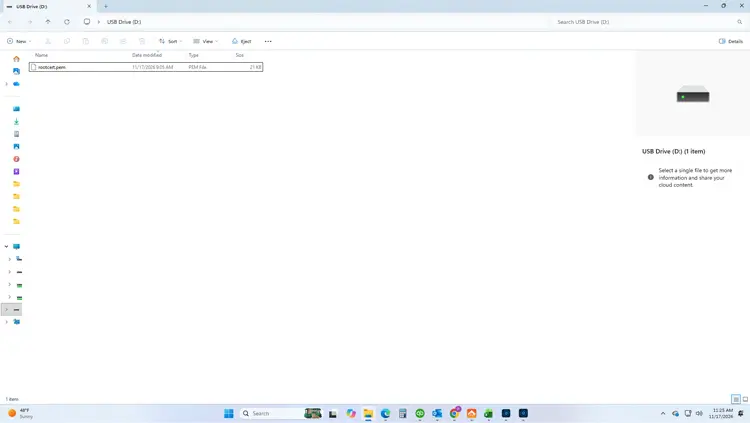
Download the file, unzip it. Copy the file and paste it onto a USB drive. It should look like the image below when you unzip and paste it.
Bring the drive to an ATM and insert it.
Login with Master Password, navigate to: Customer Setup –> Change Processor –> SSL
– in that menu enable ‘SSL Verify Certification’
– doing that will add a button saying ‘Load Cert from USB’ – press that
– if successful it will say ‘Copy Success’
Remove USB drive